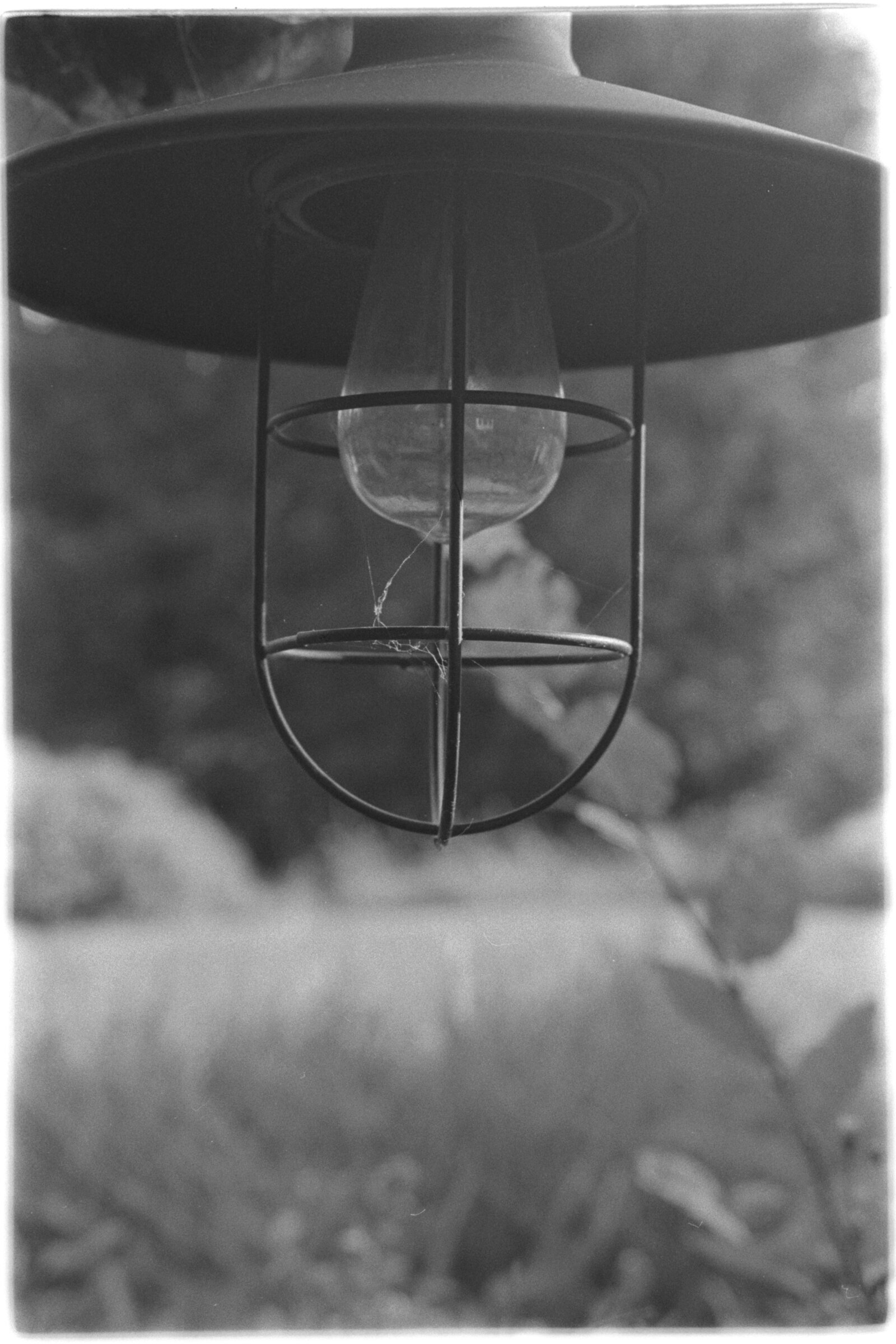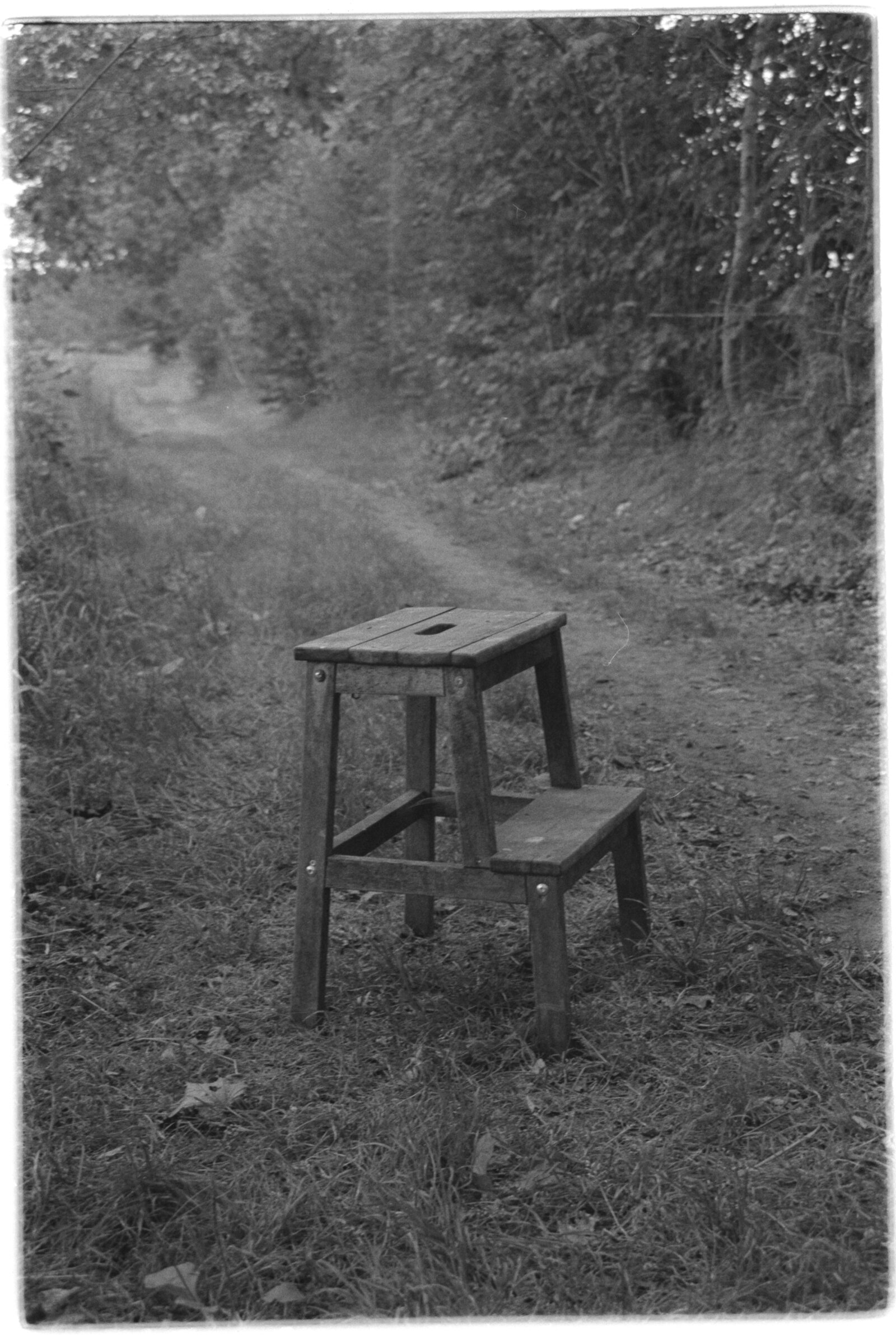
So, Darktable and all that is fine if you want great results in your digital scans - my aim is the darkroom.
To that end I’ve decided to have a scaled back routine for my digital scans to stay close to what can easily be done in the darkroom.
I also need the process to be quick and simple - I already shoot a lot of rolls and want to increase this to get more experience with the camera and how to expose.
Same steps for all frames
To give consistent, comparable results with my scans I want to use a reproducible process for all frames of a roll and stay as close as possible between rolls.
The scan
I set my camera to ISO 100, aperture 10 or 11 and set the shutter speed according to the histogram on the lightest negative (least black).
I do not change any of these settings during the scan, regardless of what the histogram (or eye) tells me.i
The (mostly) CLI conversion
Needed packages
- LibRaw’s dcraw_emu
- ImageMagick
Convert to tiff
Convert the raw to tiff, you might have to adjust this.
dcraw_emu -v -w -o 1 -6 -W -c 0 -T -Z - file.cr2 > file.tiff
| Flag | Meaning |
|---|---|
-v | Verbose mode — prints progress/diagnostic info to stderr while processing |
-w | Use the camera’s as-shot white balance (fixed, not auto-computed per image) |
-o 1 | Output color space: 1 = sRGB |
-6 | Write 16-bit output instead of the default 8-bit, preserving more tonal headroom |
-W | Disable automatic brightness adjustment (no per-image auto-exposure guess) |
-c 0 | Disable LibRaw’s “auto-maximum” highlight-clipping detection (an extra feature not in original dcraw; keeps highlight handling identical across every frame) |
-T | Write output as TIFF |
-Z - | Write output to stdout (the - means “stdout”) instead of writing a file next to the source RAW |
Invert the negative
Straight conversion, nothing else happening!
magick file.tiff -negate file_inverted.tiff
Adjust gamma
I use Gwenview to show images on my system, it has simple editing tools built in. I just lower (most often) the gamma to compensate for bad “scanning” - same value for all images in a roll.
Convert to jpeg and greyscale
magick file.tiff -colorspace Gray -type Grayscale -quality 95 file.jpg
Script it
Of course, I use a simple script (courtesy of Claude) to run through the files.
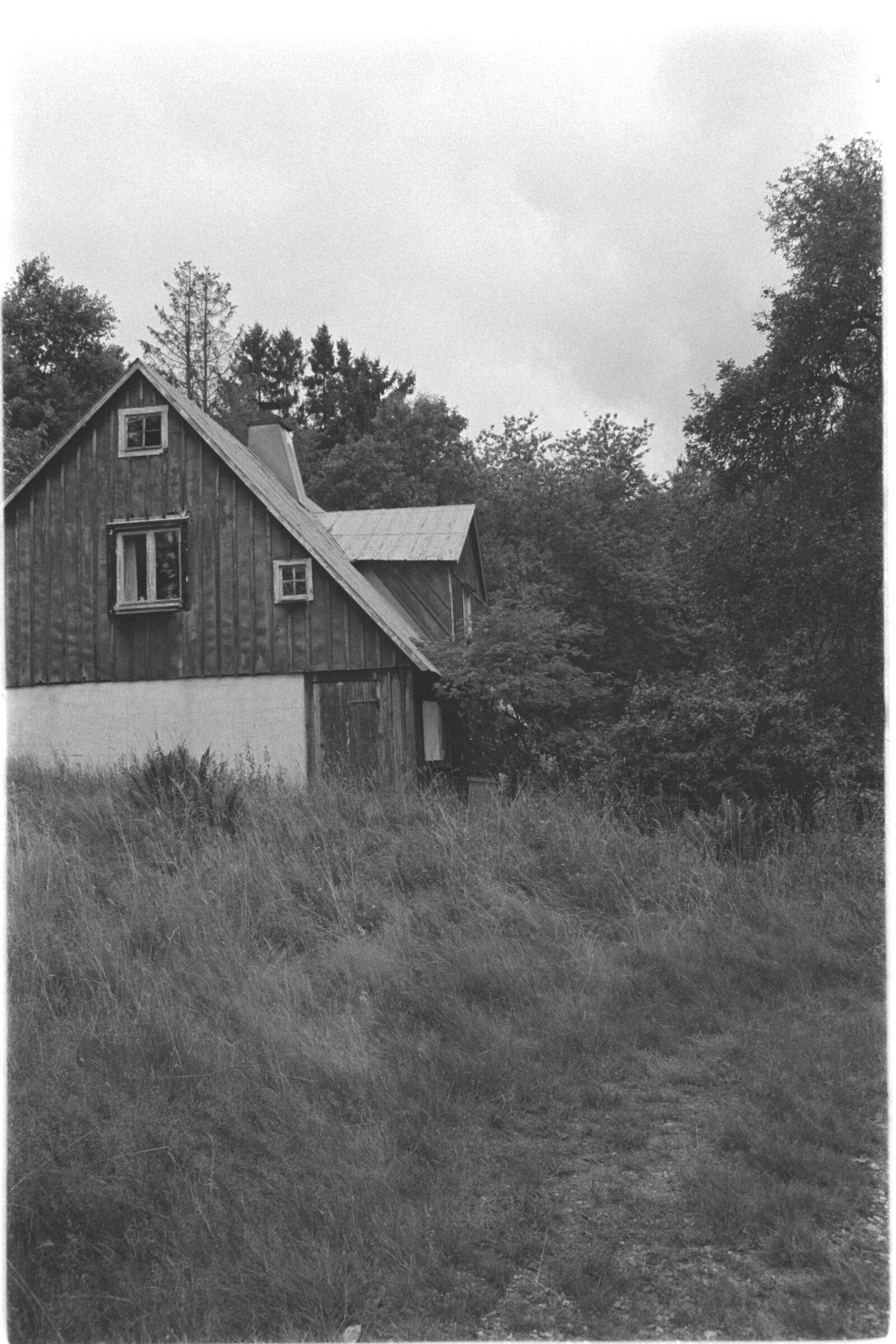
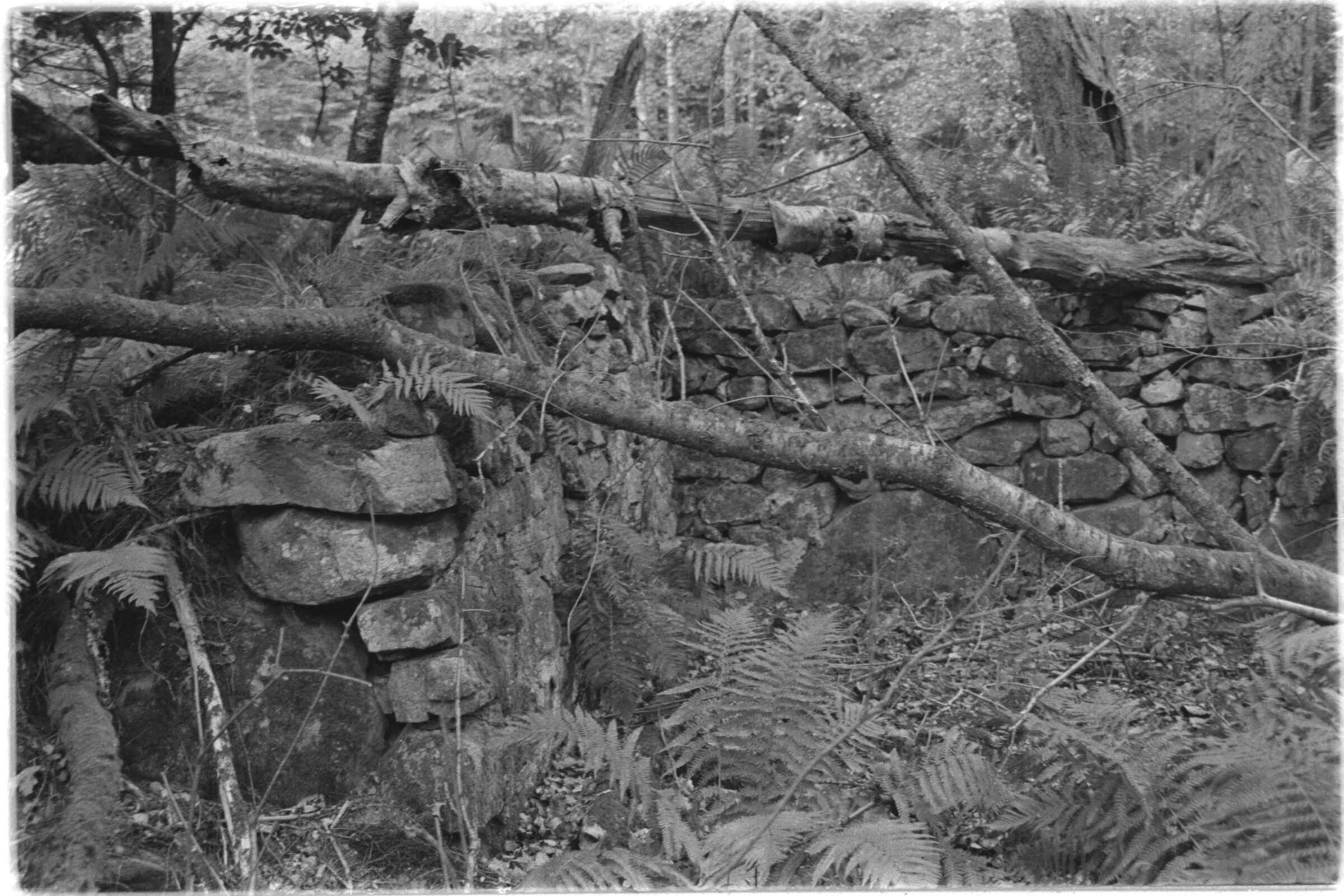
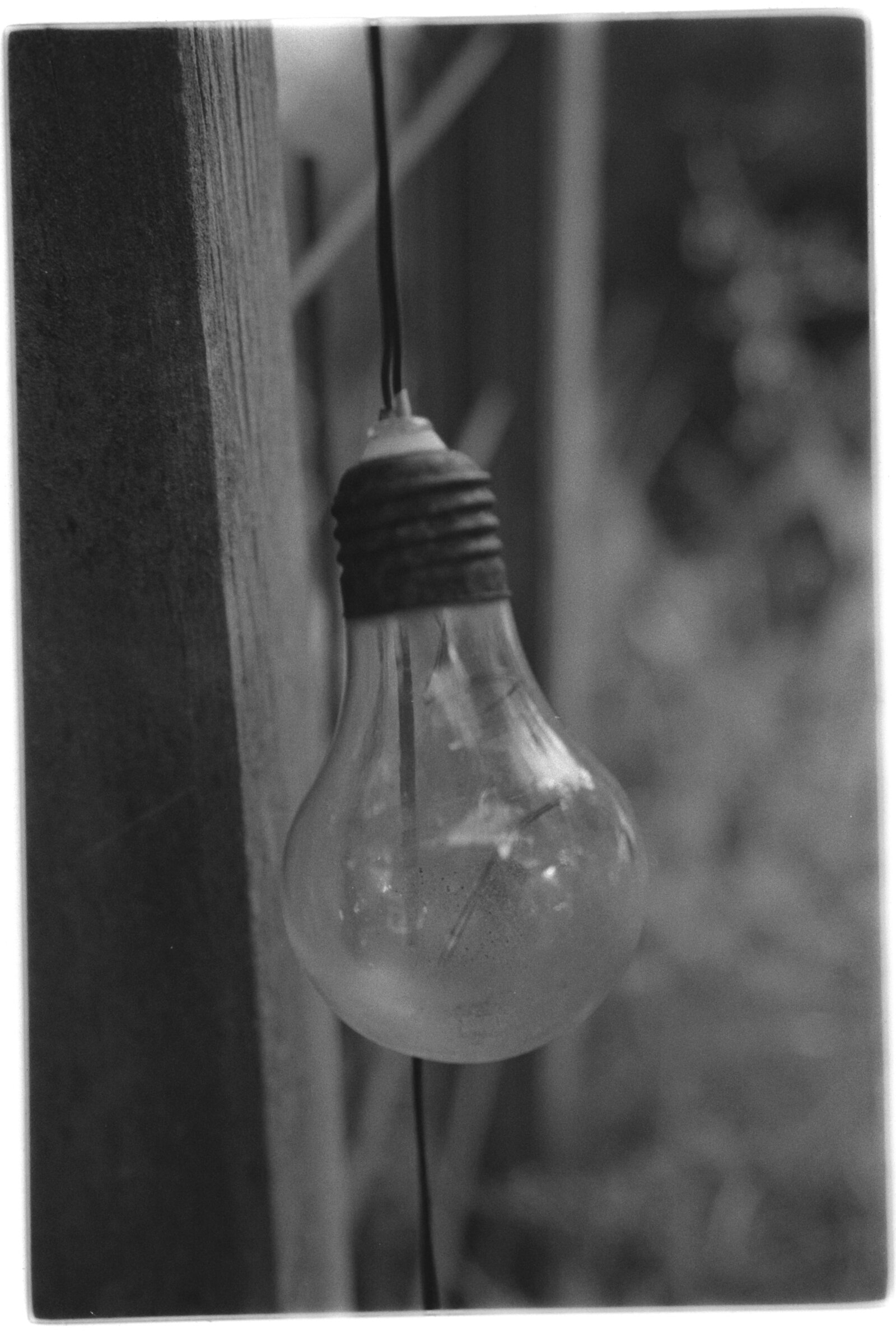
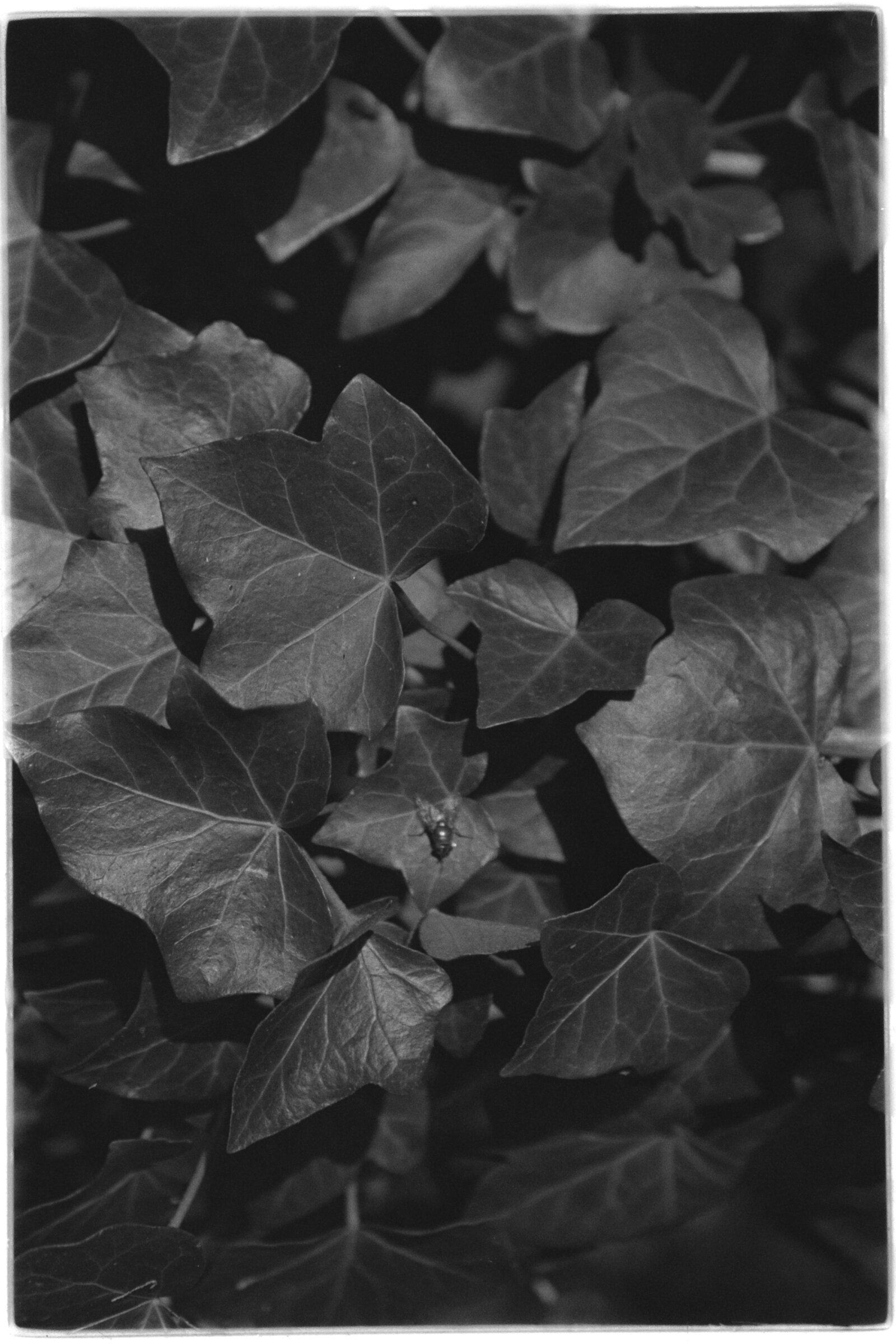
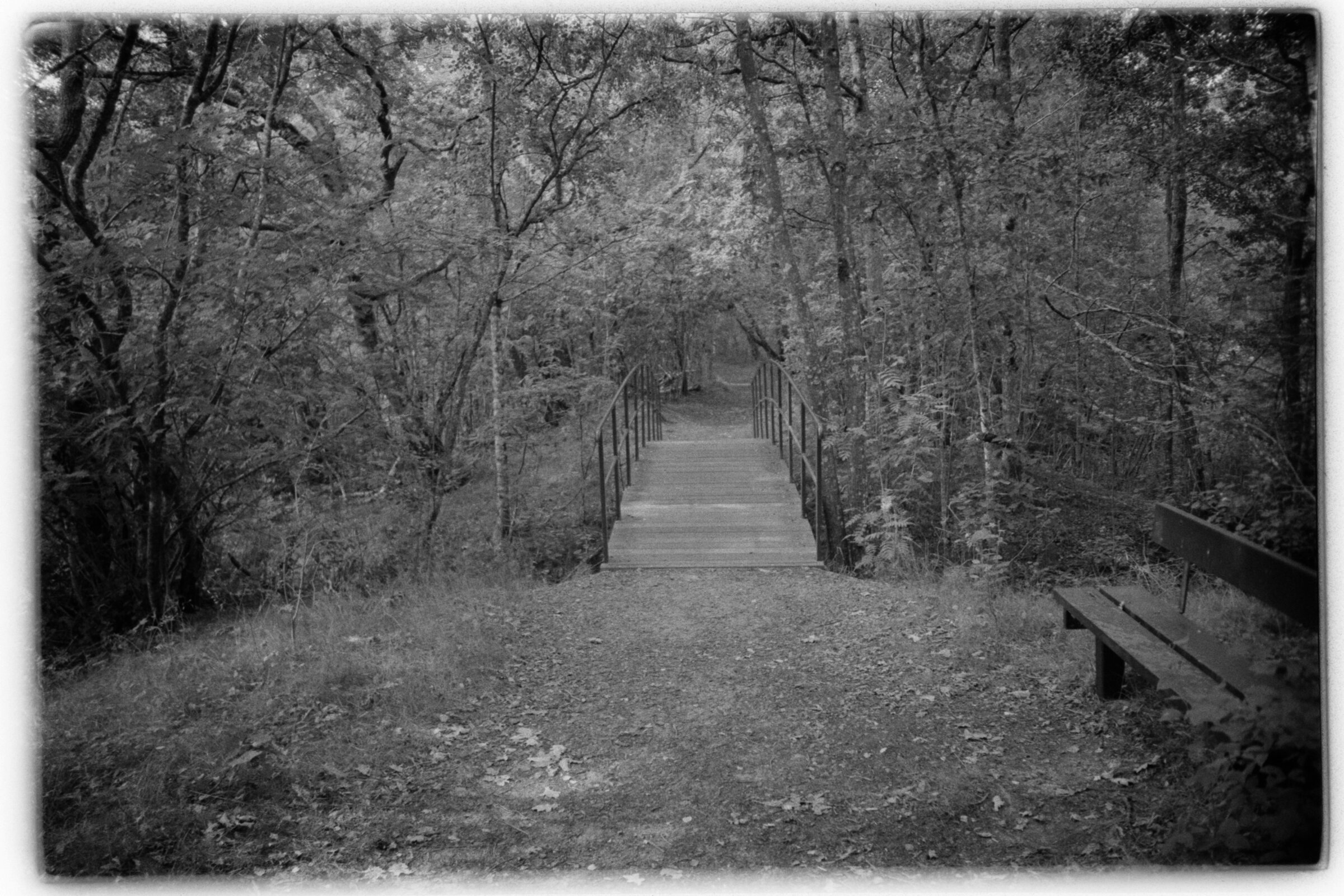
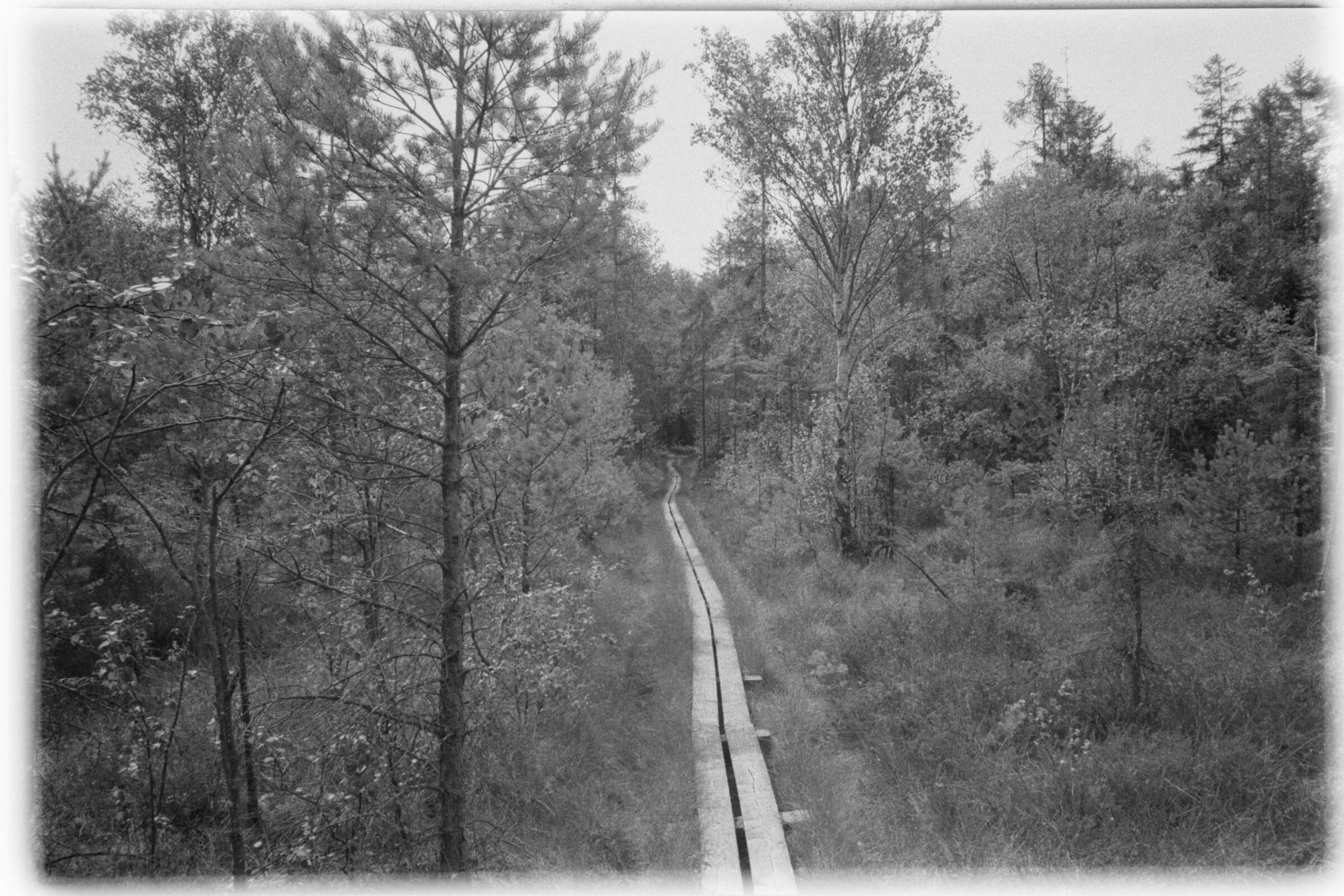
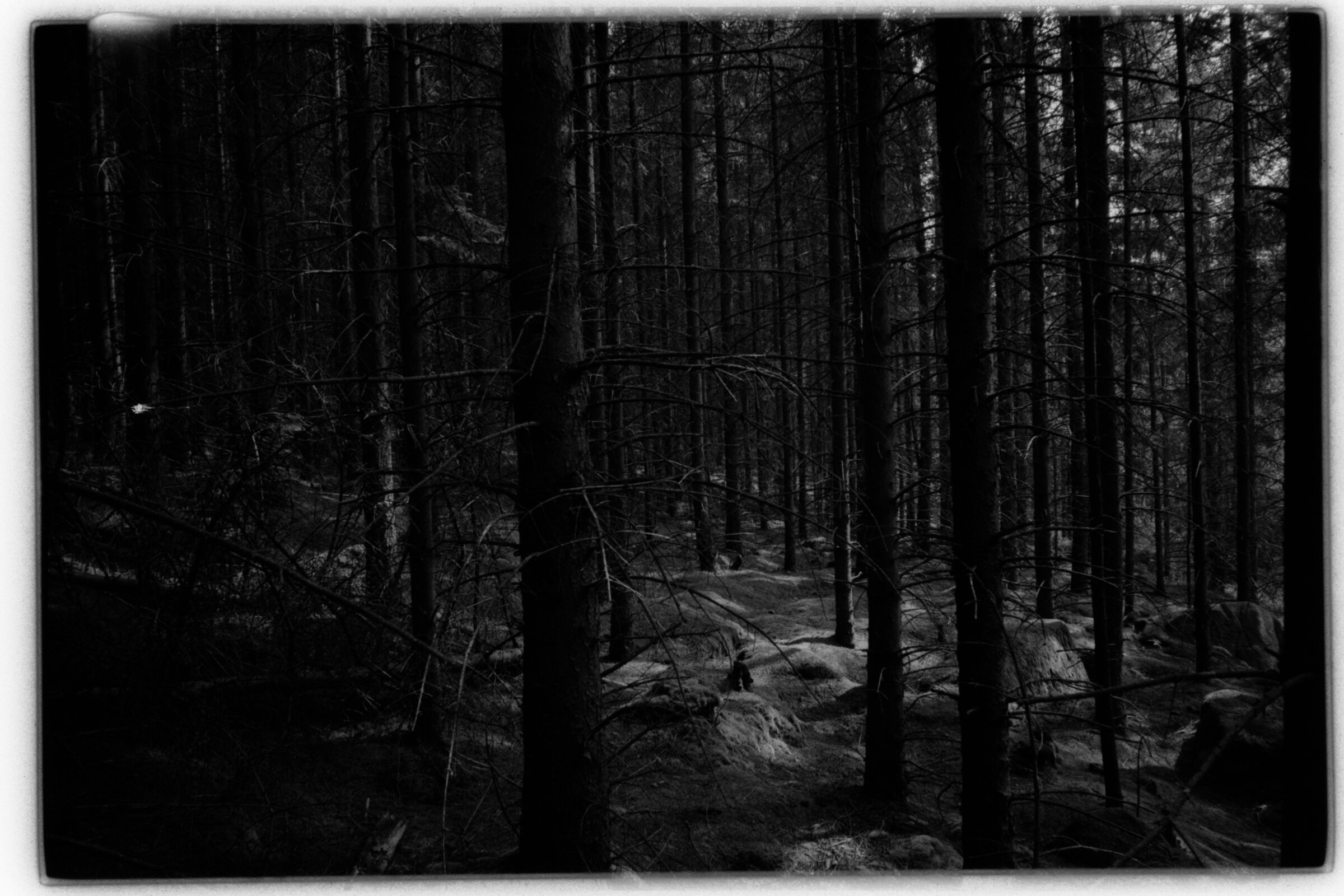
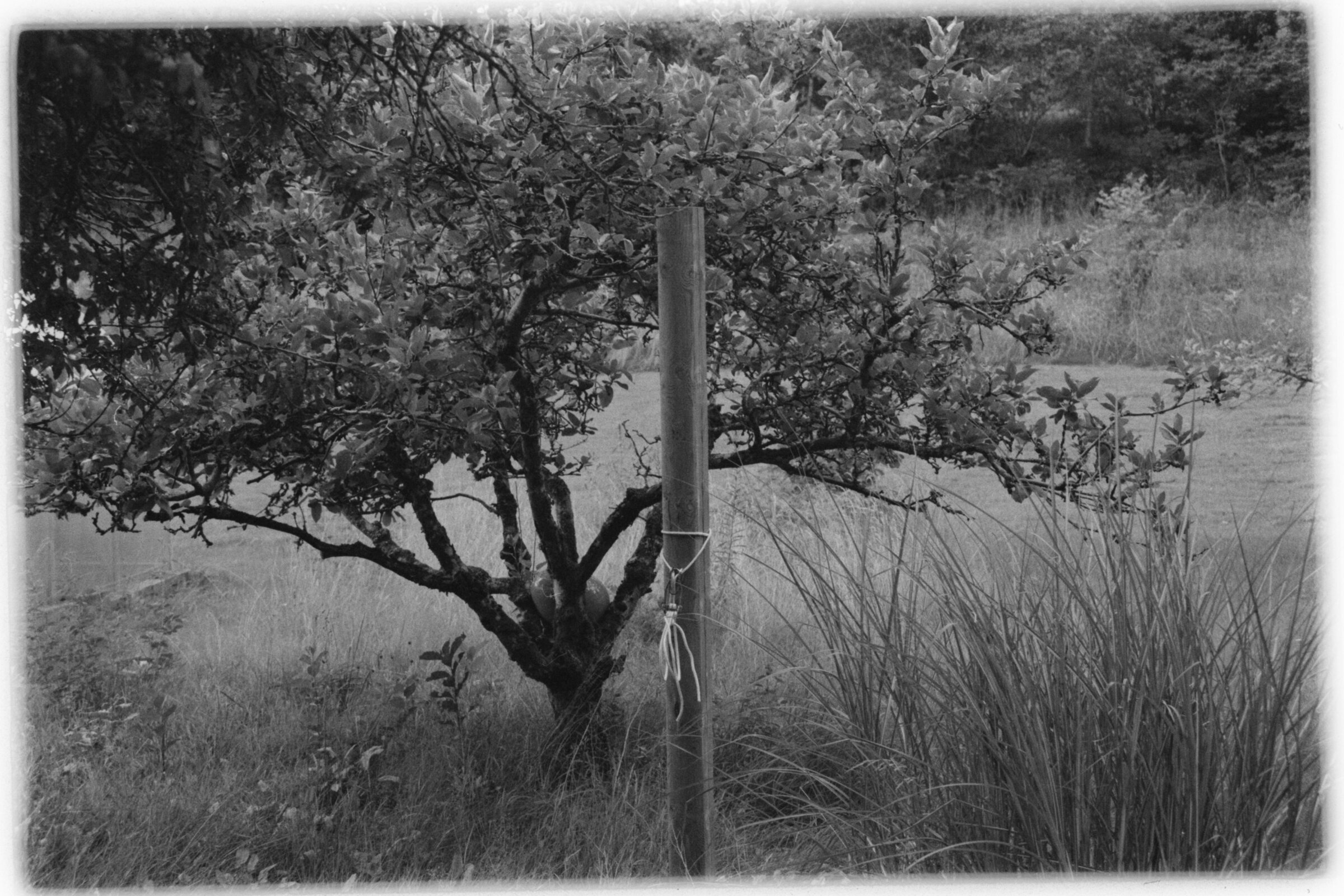
Three rolls converted/inverted this way
As you can see I crop these very quickly, not compensating for angle or angle in the scan.
Lomo MC-A (HP5+/1600)
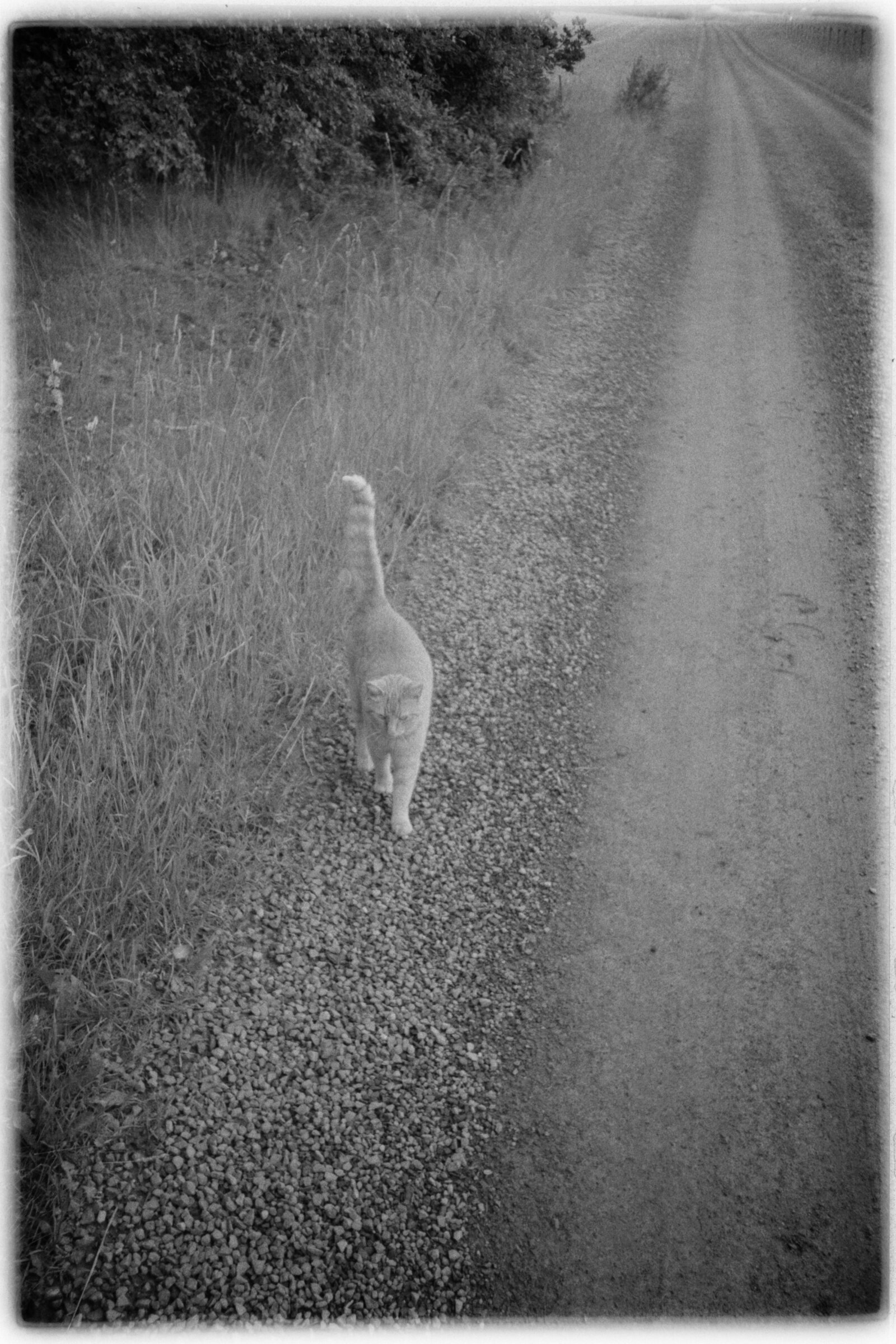
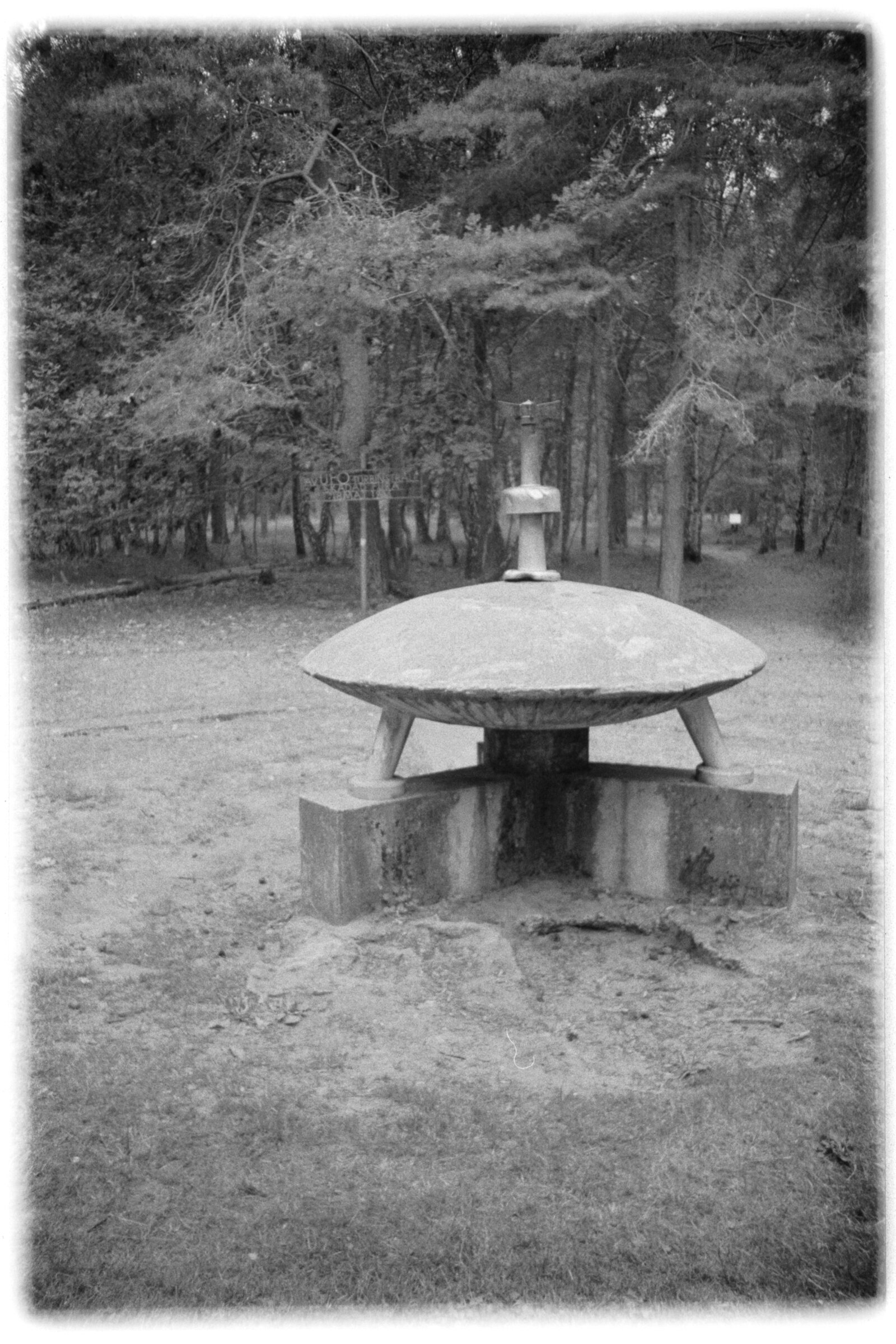
Canon EOS 300 (HP5+/800)
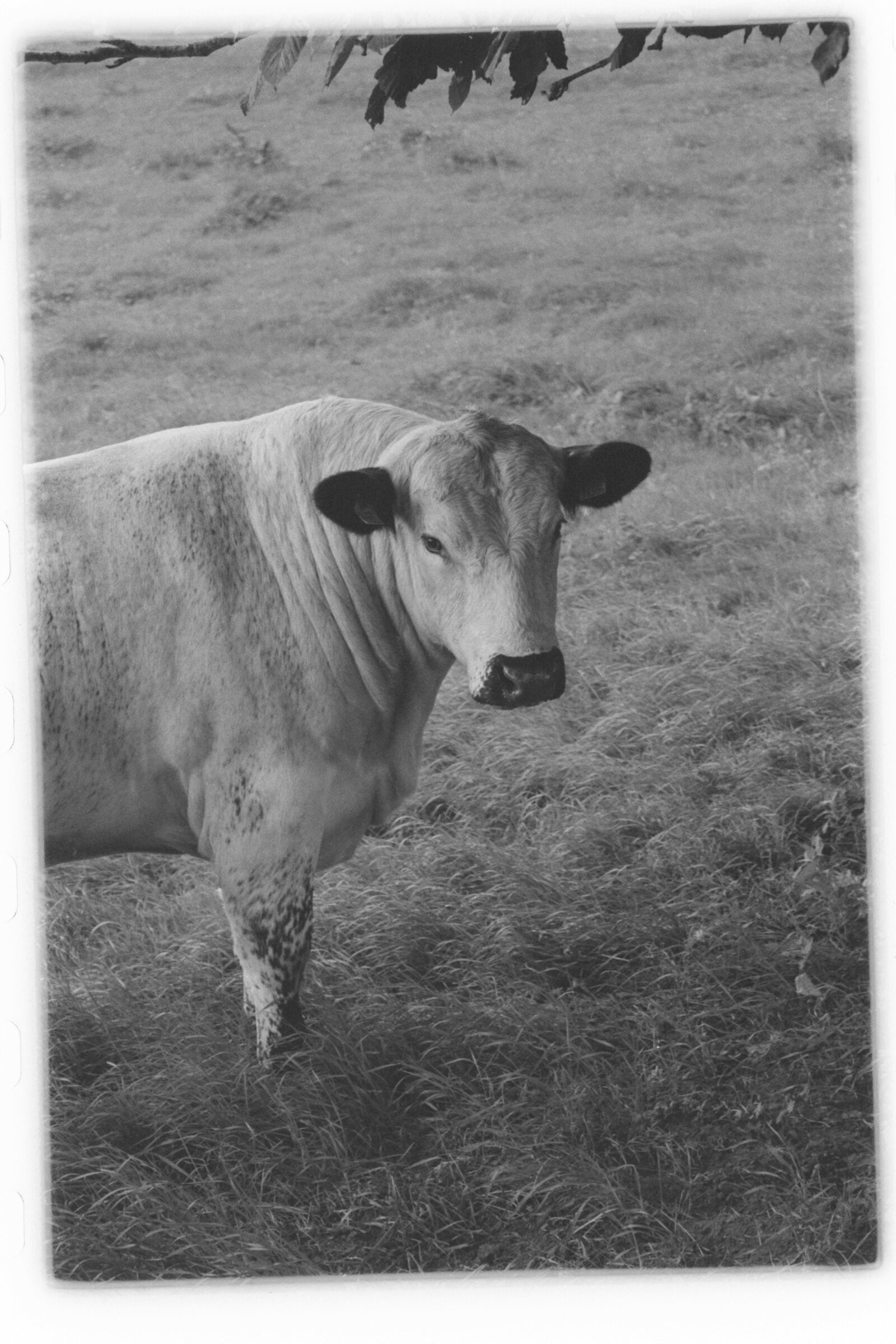
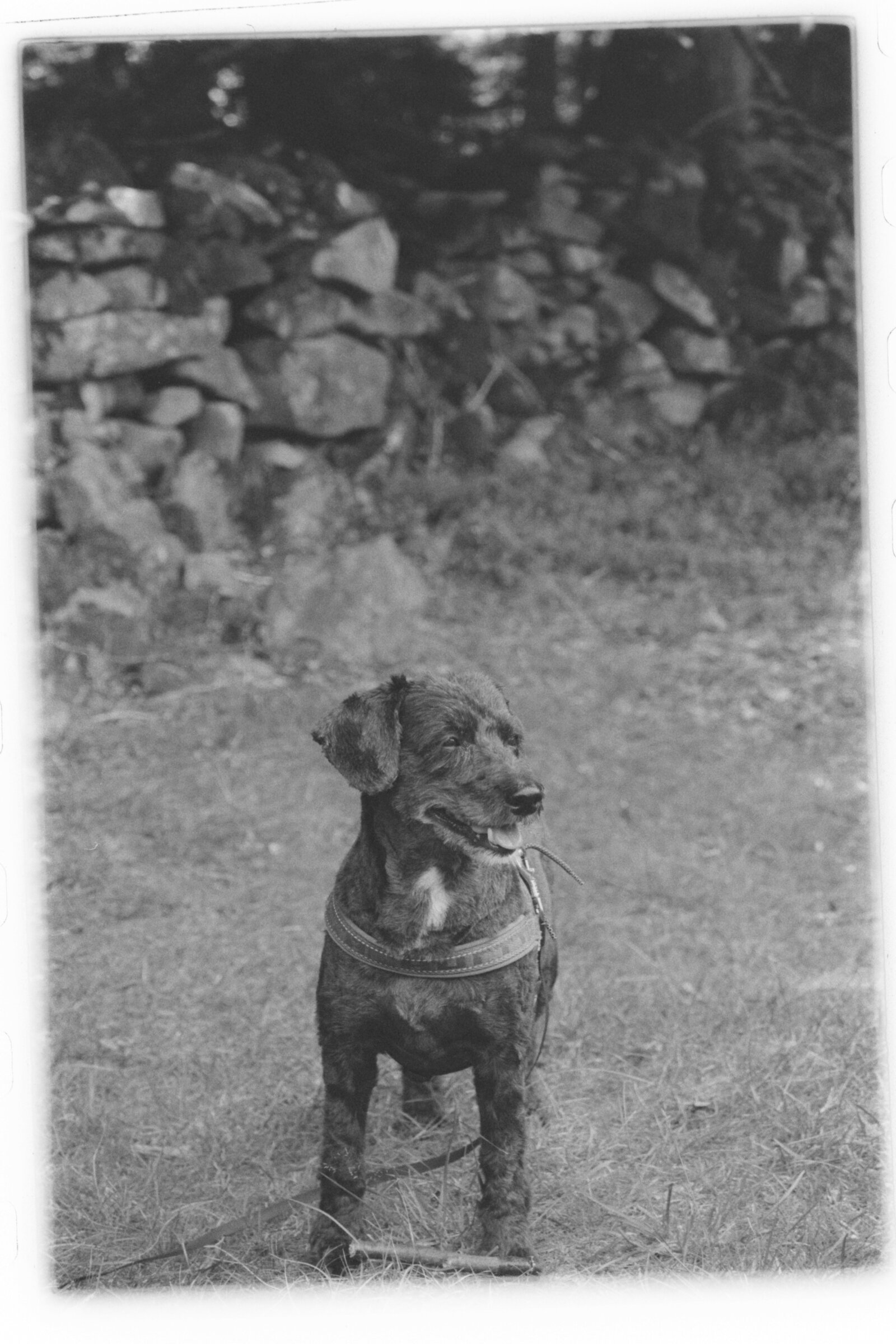
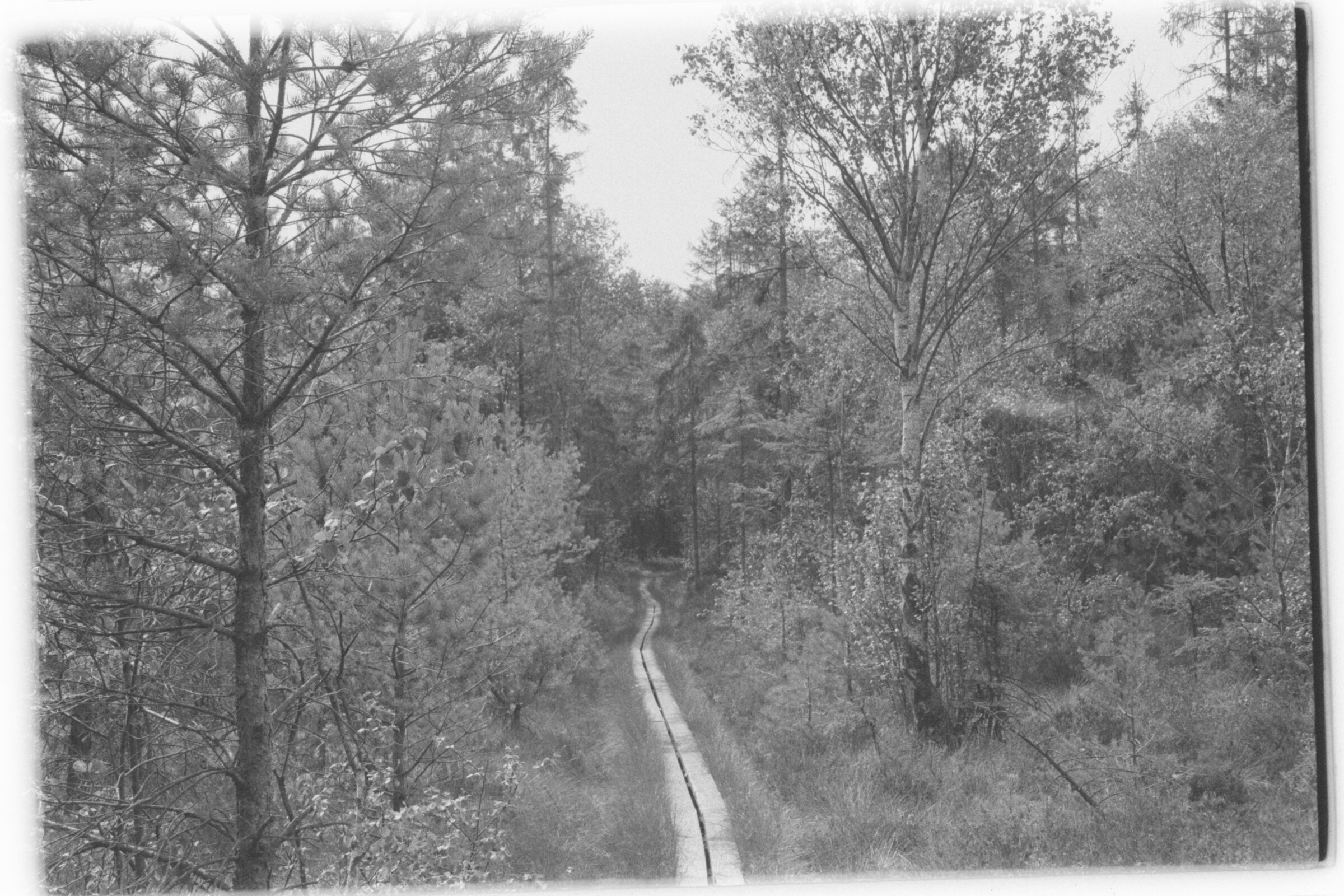
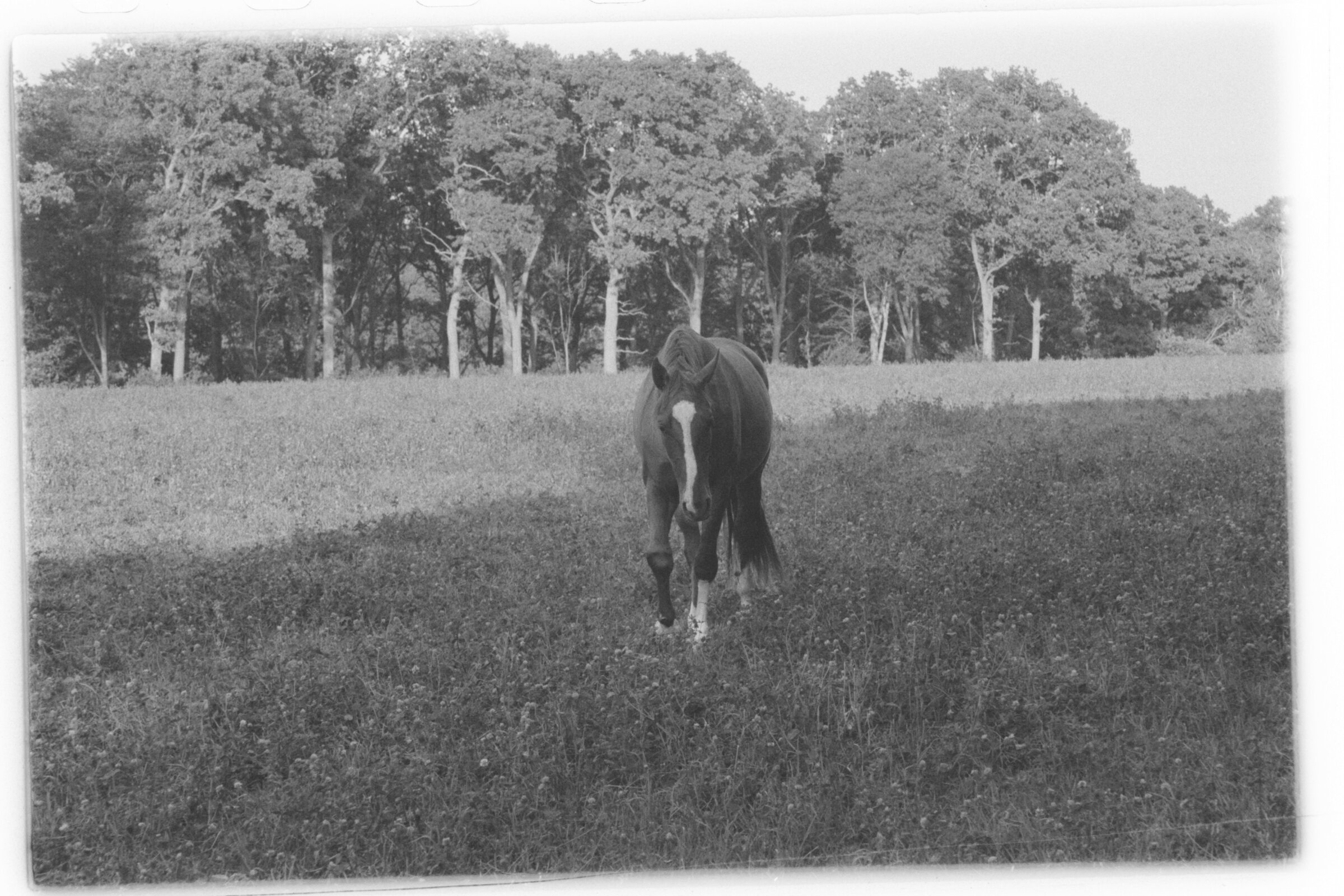
Canon EOS 300 (HP5+/400)